Building TarvosTool: From Hex Bytes to Radio Messages
How I built a C++ desktop tool that makes Tarvos-e radio modules easier to debug, from readable protocol logs to a working radio chat between Windows and macOS.
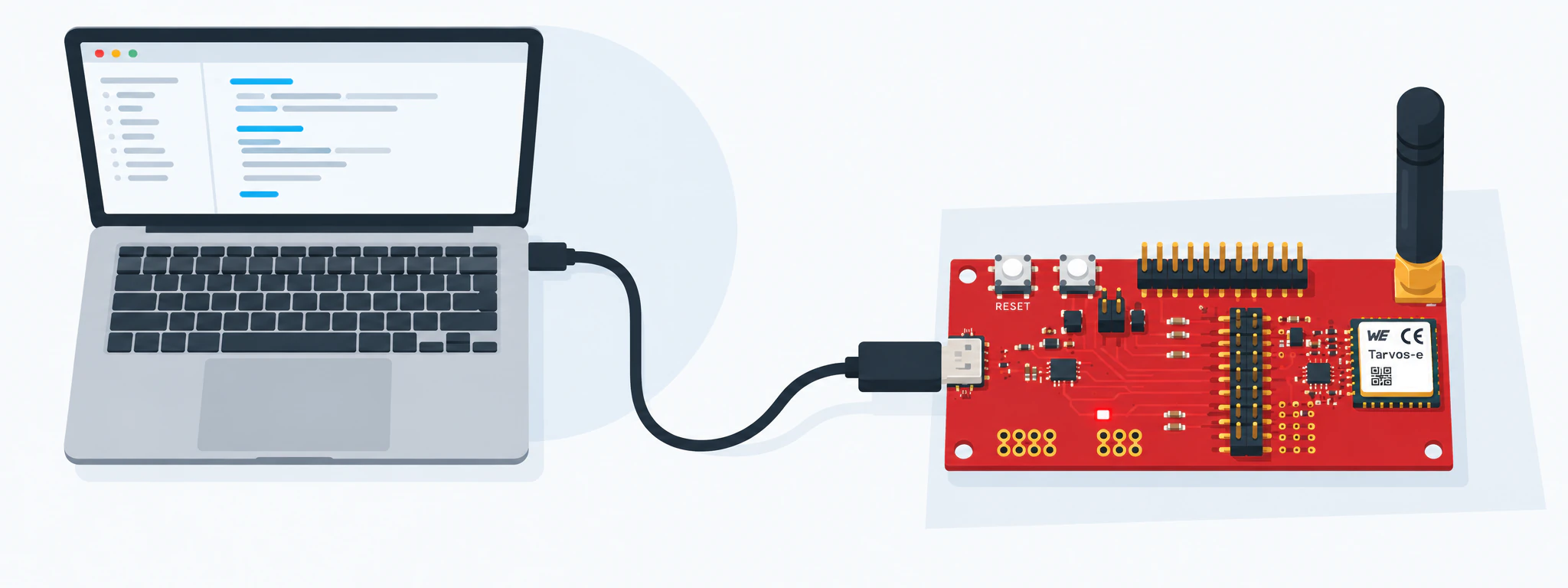
Related project: TarvosTool →
02 05 00 07. Four bytes are enough to reset a Tarvos-e radio module.
Sending a message takes a little more thought. The frame layout depends on the address mode. The maximum message size depends on the RF profile. A successful confirmation can mean that an acknowledgement arrived, or that none was requested. And after changing a stored setting, the module accepts only a restricted set of commands until it restarts.
Those details were getting between me and the device I wanted to debug.
I was developing with a Würth Elektronik Tarvos-e module on the manufacturer’s evaluation kit and wanted to control it from my computer, inspect its responses and try the radio link. I could look up command codes and decode the traffic by hand, but I wanted that information available throughout a debugging session.
That became TarvosTool: a C++ desktop application for Windows and macOS with a Command Builder, a decoded serial log and a chat for sending messages between two modules.
From an Evaluation Board to a Desktop Tool
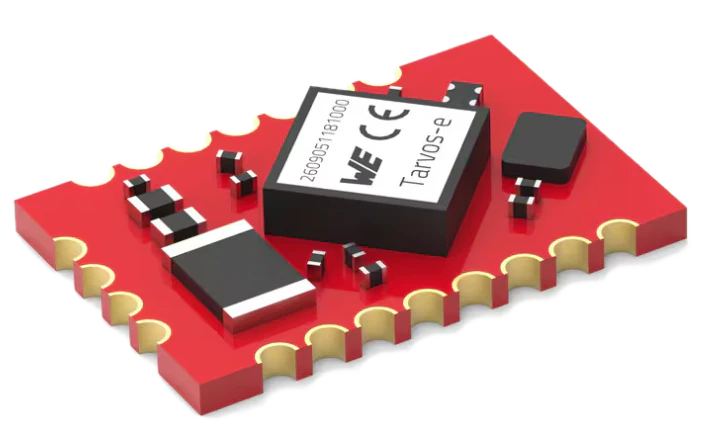
The Tarvos-e module. The evaluation kit adds the USB-UART interface used to connect it to the computer.
The PC talks to the module over UART using WE-ProWare, its binary command protocol. The module then handles communication over the radio. TarvosTool sits on the PC side of that connection, sending commands through a USB-to-UART adapter and interpreting the answers.
I wanted the tool to support a complete debugging loop: build a command, see its exact bytes, send it, read the response and understand what changed. For a radio test, I also wanted one window per module so I could work with both ends of a link.
Make Every Byte Explainable
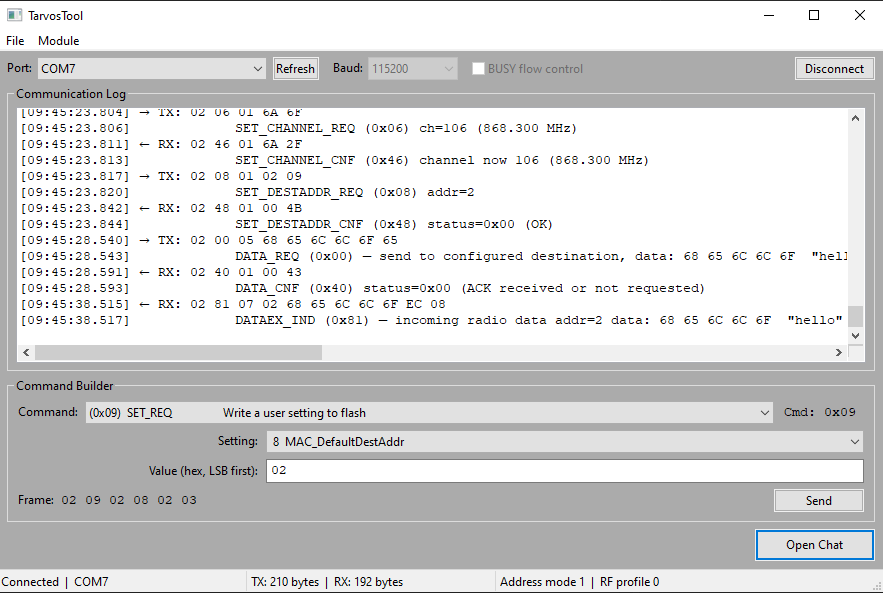
The Windows main window keeps the command, its bytes and the module’s responses together.
Every command has the same outer structure: a start byte, command code, payload length, payload and XOR checksum. The reset command is a compact example:
02 05 00 07
|  |  |  +-- checksum: 02 XOR 05 XOR 00 = 07
|  |  +----- payload length: 0
|  +-------- RESET_REQ
+----------- start byte
The Command Builder fills in that structure automatically. Select a command, enter its parameters and the Frame line shows exactly what will go over the wire. An invalid input produces an explanation in place of the frame.
After sending, the same bytes appear in the communication log with a millisecond timestamp and a readable description. Responses are decoded alongside them: command names, status meanings, addresses and received signal strength. A channel number becomes a frequency; a firmware-version response becomes a version string.
Keeping both representations matters. The description helps me follow a session, while the raw bytes let me check the tool’s interpretation against the protocol.
The Frame Depends on the Module’s State
Generating a checksum is straightforward. Knowing which bytes belong inside the frame is the more interesting problem.
Tarvos-e supports four address modes. The mode changes the layout of an explicitly addressed transmission, DATAEX_REQ, and the way incoming radio data must be interpreted:
| Address mode | Addressing | DATAEX_REQ payload |
|---|---|---|
| 0 | Broadcast, no address | channel, data |
| 1 | 1-byte address | channel, address, data |
| 2 | Network ID and 1-byte address | channel, net ID, address, data |
| 3 | Network ID and 2-byte address | channel, net ID, address LSB, address MSB, data |
If the decoder uses the wrong mode, an address byte can become part of the message. If the builder uses the wrong mode, it can produce a frame with the wrong layout even though its checksum is correct.
TarvosTool therefore reads the address mode and RF profile on connect and after every restart. Those values control the enabled fields, address lengths, incoming-data decoding and payload limits. Depending on the RF profile, a message can contain 64, 128 or 224 bytes.
Until those settings have been read, they remain explicitly unknown. The status bar shows question marks, and the builder refuses DATAEX_REQ until it knows the address mode. Internally, both settings start at -1, so an unread value cannot accidentally be treated as mode 0 or profile 0.
That small decision became one of the most useful rules in the application: read the state before building something that depends on it.
Put the Module’s Rules Into the Interface
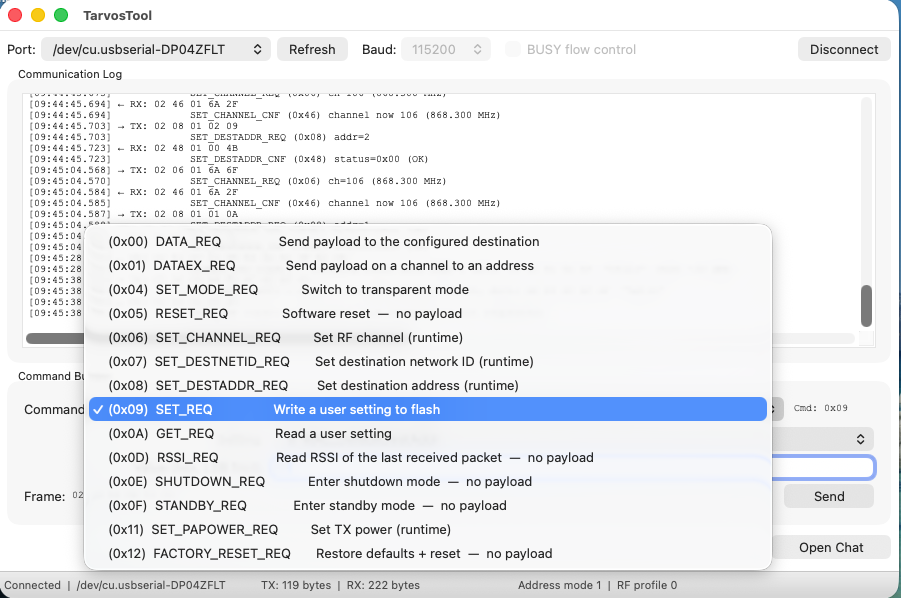
All 14 documented request commands are available, with fields and validation adapted to the selected command.
A well-formed frame can still ask the module to do something disruptive. The clearest example is SET_REQ, which writes a user setting to flash. The module does not validate the value itself, and an incorrect setting can make it unreachable.
TarvosTool includes a picker for all 22 documented user settings, checks their sizes and permissible values, and rejects writes to the two read-only settings. Before a flash write, it explains the consequences and asks for confirmation. Factory reset, transparent mode, shutdown and standby have their own confirmation dialogs.
The distinction between stored settings and runtime settings is especially important. Changing a stored address mode requires a restart. Changing the channel or destination through the runtime commands takes effect immediately and is lost on reset. The chat uses those runtime commands so that trying a different destination does not require another flash write.
The request queue also follows the module’s rules. It sends one request at a time and waits for the expected confirmation or a timeout: 500 ms for ordinary commands and two seconds for data transmissions. After a stored setting is written, it allows only SET_REQ, GET_REQ and RESET_REQ until the module restarts.
These restrictions make the device’s current state visible at the point where it affects the next action.
Give the Radio Link a Conversation
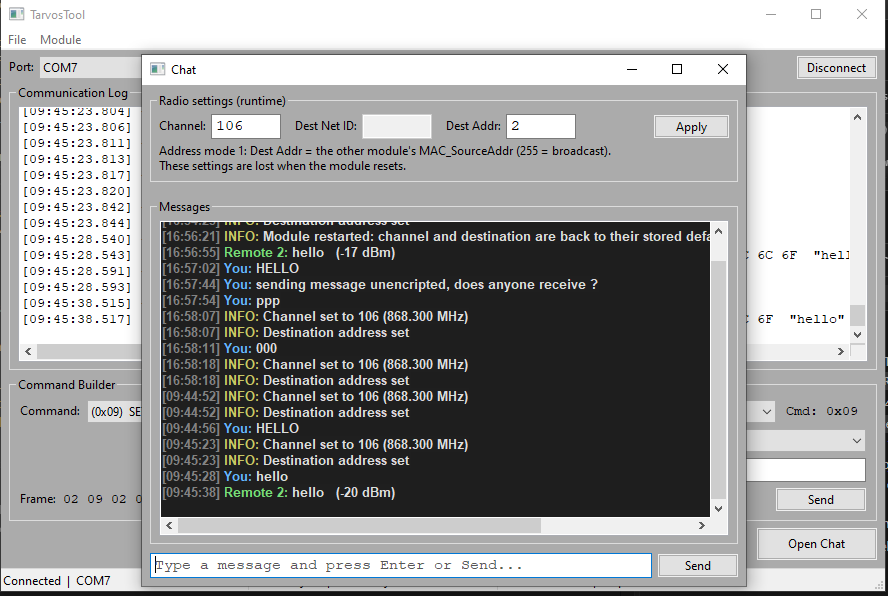
The chat puts the radio settings above the conversation. Received messages include the sender’s address when available and the signal strength in dBm.
The Command Builder is useful for individual protocol operations. The chat brings those operations together into a repeatable radio test.
Each chat belongs to one module. It sends UTF-8 text to the configured destination and shows incoming messages with their sender address and RSSI. The module’s transmission status is interpreted too, so failures such as a busy channel, an oversized payload or exhausted acknowledgement retries appear in the conversation.
The meaning of a successful status needs care: a DATA_CNF status of 0x00 means an ACK was received or no ACK was requested. It is not, by itself, proof that another module received the message. For acknowledged delivery, MAC_NumRetrys must be greater than zero.
With factory settings, two modules on channel 106 can exchange broadcast messages without address configuration. For an addressed conversation in mode 1, the setup is:
- Use
SET_REQto setMAC_DefaultAddressModeto01on both modules. - Give them different
MAC_SourceAddrvalues, such as01and02. SetMAC_NumRetrysto03if acknowledgements and retries are wanted. - Send
RESET_REQso the stored settings take effect. - Open both chats, select the same channel, enter the other module’s address as the destination and click Apply.
The channel and destination controls are runtime settings. A restart restores their stored defaults, and the chat reports that change. Addressing chooses the recipient; it does not encrypt the message.
A Message From Windows Arrives on the Mac
I tested the link with two physical modules: one connected to a Windows PC and one to a Mac. Both used address mode 1 on channel 106, with each module addressing the other. Messages travelled in both directions.
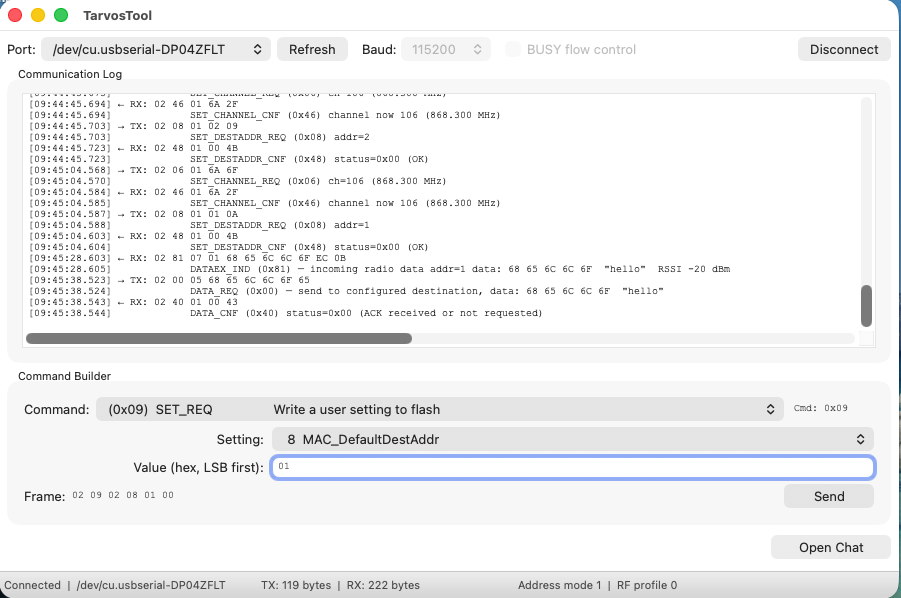
The Mac side of the exchange. The log shows the incoming message, a reply and the module’s transmission confirmation.
This received frame from the session shows how the decoder turns bytes into a message:
02 81 07 01 68 65 6C 6C 6F EC 0B
         |  |              |
         |  +-- "hello"    +-- RSSI: -20 dBm
         +----- sender address: 1
The outer frame says that radio data arrived. Address mode 1 tells the parser to treat the first payload byte as the sender’s address. The next five bytes spell hello. The final payload byte, EC, is the signed RSSI value −20; 0B is the checksum.
Seeing the message arrive made the whole path visible: from a text field on one computer, through UART and the radio link, to decoded bytes on the other.
Keeping the Implementation Small
TarvosTool is about 2,700 lines of C++17, built with CMake and using wxWidgets as its only third-party dependency. The implementation has three layers:
- Interface: the main window and chat, including module state, the request queue and the communication log.
- Protocol: frame building, stream parsing, decoding and setting validation, with no GUI code or I/O.
- Serial transport: POSIX termios on macOS and the Win32 communications API on Windows.
A 20 ms timer reads the serial port and feeds the parser. Keeping this on the GUI thread avoids a separate reader thread and locks. Each main window owns its own port, parser, queue and module state, so opening a second module creates an independent session.
Requests also carry their origin: the builder, the chat or an automatic query. That lets a confirmation update the chat only when the chat initiated the request.
The serial layer contains the platform-specific details. On macOS, the application opens /dev/cu.* devices for host-initiated communication. On Windows, the \\.\COMn device path supports higher-numbered COM ports as well. The interface and protocol code are shared, and GitHub Actions builds both platforms.
Checking the Tool Against the Manual
A readable decoder is only useful if its interpretation is right.
I compiled the protocol layer independently and checked it against example frames from the Tarvos-e user manual, revision 2.18. The documented set of 23 offline checks passed. It covers frame construction, parsing, address handling, confirmation codes and setting validation, including rejecting invalid values and writes to read-only settings.
The separate protocol layer made those checks possible without opening a window or connecting hardware. The two-module test then exercised the complete application and radio path. The offline test program is not included in the public repository.
Version 0.1 still has practical limits. The Intel Mac build is supported through a CMake flag but has not been built or run. BUSY-to-CTS wiring on the evaluation kit remains unconfirmed, so that flow-control option is off by default. The log can be copied but has no save or clear function, and incoming messages appear in the chat only while its window is open; the main log continues to record them.
What Building It Changed
TarvosTool started as a command tool with a separate private chat extension. When I decided to release it, I brought both into a single public repository under the MIT license.
The result gives me a way to work with the module’s commands, settings and radio link in one application. The design principle I would carry into another hardware tool is simple: make the bytes inspectable, keep unknown state explicit and explain the device’s restrictions where they affect the user.
A short hello arriving on the other computer is a satisfying result. Being able to follow every step that got it there is what makes the tool useful for debugging.
Source code: github.com/fsm-fawzifansa/TarvosTool (MIT license).
TarvosTool is an independent project. It is not affiliated with or endorsed by Würth Elektronik. Tarvos-e and WE-ProWare are names of their respective owners.